133 lines
10 KiB
Markdown
133 lines
10 KiB
Markdown
# Jellyfin
|
||
|
||
### 免费软件媒体系统
|
||
|
||
* * *
|
||
|
||

|
||
[](https://github.com/jellyfin/jellyfin)[ ](https://github.com/jellyfin/jellyfin/releases)[ ](https://translate.jellyfin.org/projects/jellyfin/jellyfin-core/?utm_source=widget)[ ](https://dev.azure.com/jellyfin-project/jellyfin/_build?definitionId=29)[](https://hub.docker.com/r/jellyfin/jellyfin)
|
||
[](https://opencollective.com/jellyfin)[ ](https://features.jellyfin.org)[ ](https://matrix.to/#/#jellyfinorg:matrix.org)[ ](https://www.reddit.com/r/jellyfin)[ ](https://github.com/jellyfin/jellyfin/releases.atom)[](https://github.com/jellyfin/jellyfin/commits/master.atom)
|
||
|
||
* * *
|
||
|
||
Jellyfin 是一个免费软件媒体系统,让您掌控媒体管理和流媒体播放。它是 Emby 和 Plex 等专有软件的替代品,通过多个应用程序从专用服务器向终端设备提供媒体。Jellyfin 源自 Emby 的 3.5.2 版本,并移植到.NET Core 框架以实现全平台支持。没有任何附加条件,没有高级许可证或功能,也没有隐藏议程:只有一个想要打造更好产品并共同努力实现目标的团队。我们欢迎任何有兴趣加入我们追求的人!
|
||
|
||
有关详细信息,请参阅[我们的文档页面](https://jellyfin.org/docs/) 。要获取最新更新,获取 Jellyfin 的帮助并加入社区,请访问[我们的沟通渠道之一](https://jellyfin.org/docs/general/getting-help) 。有关项目的更多信息,请参阅我们的[关于页面](https://jellyfin.org/docs/general/about) 。
|
||
|
||
**想要开始吗?**
|
||
查看我们的[下载页面](https://jellyfin.org/downloads)或我们的[安装指南](https://jellyfin.org/docs/general/installation/) ,然后查看我们的[快速入门指南](https://jellyfin.org/docs/general/quick-start) 。您还可以[从源代码构建](https://jellyfin.org/docs/general/installation/source) 。
|
||
|
||
**有什么问题吗?**
|
||
在 GitHub 上[提交问题](https://jellyfin.org/docs/general/contributing/issues) 。
|
||
|
||
**想要贡献?**
|
||
查看我们的[贡献选择冒险](https://jellyfin.org/contribute) ,看看你可以在哪里提供帮助,然后查看我们的[贡献指南](https://jellyfin.org/docs/general/contributing/)和我们的[社区标准](https://jellyfin.org/docs/general/community-standards) 。
|
||
|
||
**有新想法或改进建议?**
|
||
查看我们的[功能请求中心](https://features.jellyfin.org/?view=most-wanted) 。
|
||
|
||
**没看到 Jellyfin 支持你的语言?**
|
||
访问我们的 [Weblate 实例](https://translate.jellyfin.org)来帮助翻译 Jellyfin 及其子项目。
|
||
|
||
[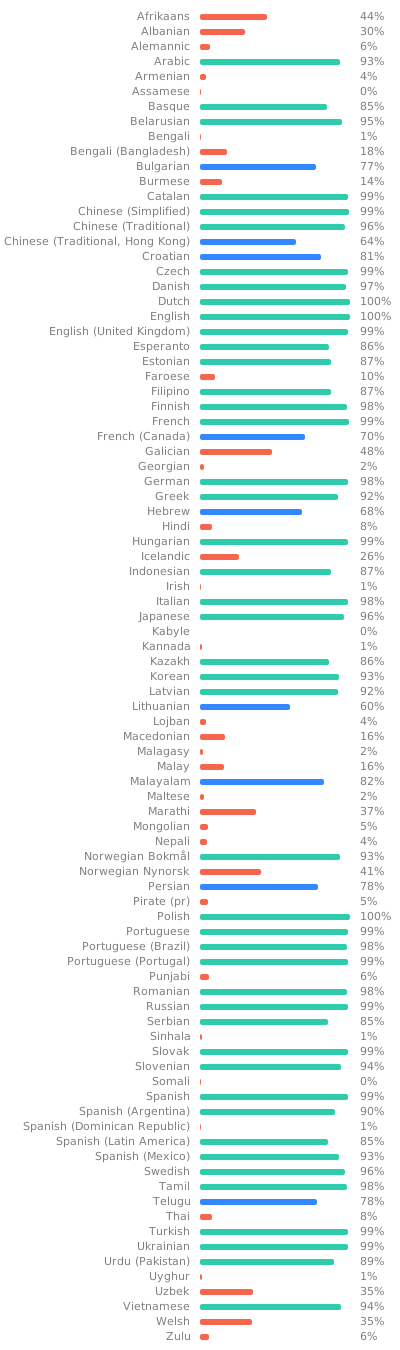](https://translate.jellyfin.org/engage/jellyfin/?utm_source=widget)
|
||
|
||
* * *
|
||
|
||
## Jellyfin 服务器
|
||
|
||
此存储库包含 Jellyfin 后端服务器的代码。请注意,这仅仅是 GitHub 上 Jellyfin GitHub [组织](https://github.com/jellyfin/)下的众多项目之一。如果你想贡献,可以从查看我们的[文档](https://jellyfin.org/docs/general/contributing/index.html)开始,了解可以做什么工作。
|
||
|
||
## 服务器开发
|
||
|
||
以下说明将帮助您设置本地开发环境,以便为这个仓库做出贡献。在开始之前,请务必完全阅读我们关于开发贡献的[指南](https://jellyfin.org/docs/general/contributing/development.html) 。请注意,本项目支持所有主流操作系统,除了 FreeBSD,它仍然不兼容。
|
||
|
||
### 先决条件
|
||
|
||
在构建项目之前,您必须首先在您的系统上安装 [.NET 7.0 SDK](https://dotnet.microsoft.com/download/dotnet)。
|
||
|
||
在此包含运行此项目的命令行说明,但如果您想在服务器运行时进行调试,还需要安装一个 IDE。任何支持.NET 6 开发的 IDE 都可以使用,但两种选项是 [Visual Studio](https://visualstudio.microsoft.com/downloads/) 的最新版本(至少 2022 年)和 [Visual Studio Code](https://code.visualstudio.com/Download)。
|
||
|
||
[ffmpeg](https://github.com/jellyfin/jellyfin-ffmpeg) 也需要安装。
|
||
|
||
### 克隆仓库
|
||
|
||
在安装依赖项之后,您需要克隆此仓库的本地副本。如果您只想从源代码运行服务器,可以直接克隆此仓库,但如果您打算向项目贡献代码更改,您应该 [设置自己的仓库分支](https://jellyfin.org/docs/general/contributing/development.html#set-up-your-copy-of-the-repo) 。以下示例显示了如何直接通过 HTTPS 克隆仓库。
|
||
|
||
```bash
|
||
git clone https://github.com/jellyfin/jellyfin.git
|
||
```
|
||
|
||
### 安装 Web 客户端
|
||
|
||
服务器配置为托管 [Web 客户端](https://github.com/jellyfin/jellyfin-web)所需的静态文件,同时默认提供后端服务。在您运行服务器之前,您需要获取 Web 客户端的副本,因为这些文件并未直接包含在本存储库中。
|
||
|
||
请注意,您还可以通过一些额外的配置将 [Web 客户端单独托管](#hosting-the-web-client-separately)在 Web 服务器之外,在这种情况下,您可以跳过此步骤。
|
||
|
||
获取 Web 客户端文件有三种选项。
|
||
|
||
1. 从 [Azure DevOps 管道](https://dev.azure.com/jellyfin-project/jellyfin/_build?definitionId=27)下载一个完成的构建。您可以通过查看管道页面的[分支选项卡](https://dev.azure.com/jellyfin-project/jellyfin/_build?definitionId=27&_a=summary&repositoryFilter=6&view=branches)来下载特定版本的构建。
|
||
2. 从源代码构建,按照 [jellyfin-web 仓库](https://github.com/jellyfin/jellyfin-web)上的说明进行
|
||
3. 从现有服务器安装中获取预构建文件。例如,在 Windows 服务器安装中,客户端文件位于 `C:\Program Files\Jellyfin\Server\jellyfin-web`
|
||
|
||
### 运行服务器
|
||
|
||
以下说明将帮助您通过命令行或您首选的 IDE 启动项目。
|
||
|
||
#### 使用 Visual Studio 运行
|
||
|
||
要使用 Visual Studio 运行项目,您可以打开解决方案文件(`.sln`),然后按 `F5` 键运行服务器。
|
||
|
||
#### 使用 Visual Studio Code 运行
|
||
|
||
要使用 Visual Studio Code 运行项目,您首先需要使用`打开文件夹...` 选项,用 Visual Studio Code 打开仓库目录。
|
||
|
||
其次,您需要[安装工作空间推荐扩展](https://code.visualstudio.com/docs/editor/extension-gallery#_recommended-extensions) 。请注意,扩展推荐分为“工作空间推荐”和“其他推荐”两类,但仅需要“工作空间推荐”。
|
||
|
||
安装所需扩展后,您可以通过按下 `F5` 来运行服务器。
|
||
|
||
#### 从命令行运行
|
||
|
||
要从命令行运行服务器,您可以使用 `dotnet run` 命令。以下示例展示了如果您已将仓库克隆到名为 `jellyfin`(默认目录名)的目录中,应该如何操作,并且应在所有操作系统上有效。
|
||
|
||
```bash
|
||
cd jellyfin # Move into the repository directory
|
||
dotnet run --project Jellyfin.Server --webdir /absolute/path/to/jellyfin-web/dist # Run the server startup project
|
||
```
|
||
|
||
第二种选项是先构建项目,然后直接运行生成的可执行文件。直接运行可执行文件时,您可以轻松添加命令行选项。添加 `--help` 标志可以列出所有支持的命令行选项的详细信息。
|
||
|
||
1. 构建项目
|
||
|
||
```bash
|
||
dotnet build # Build the project
|
||
cd Jellyfin.Server/bin/Debug/net7.0 # Change into the build output directory
|
||
```
|
||
|
||
2. 执行构建输出。在 Linux、Mac 等系统上,使用 `./jellyfin`,在 Windows 上使用 `jellyfin.exe`。
|
||
|
||
### 运行测试
|
||
|
||
此存储库还包括用于在 Azure 上的 CI 管道中验证功能的单元测试。有几种方法可以运行这些测试。
|
||
|
||
1. 使用 `dotnet test` 从命令行运行测试
|
||
2. 使用[测试资源管理器](https://docs.microsoft.com/en-us/visualstudio/test/run-unit-tests-with-test-explorer)在 Visual Studio 中运行测试
|
||
3. 使用相关的 [CodeLens 批注](https://github.com/OmniSharp/omnisharp-vscode/wiki/How-to-run-and-debug-unit-tests)在 Visual Studio Code 中运行单个测试
|
||
|
||
### 高级配置
|
||
|
||
以下章节描述了从源代码运行服务器的一些更高级场景,这些场景基于上述标准说明。
|
||
|
||
#### 单独托管 Web 客户端
|
||
|
||
没有必要将前端 Web 客户端作为后端服务器的一部分进行托管。将这两个组件分别托管可能对希望在前端开发服务器中单独托管客户端以实现更紧密的开发循环的前端开发者来说很有用。有关如何操作的说明,请参阅 [jellyfin-web](https://github.com/jellyfin/jellyfin-web#getting-started) 仓库。
|
||
|
||
要指示服务器不托管网页内容,必须设置一个 `nowebclient` 配置标志。这可以通过命令行开关 `--nowebclient` 或环境变量 `JELLYFIN_NOWEBCONTENT=true` 来指定。
|
||
|
||
由于这是一个常见场景,还有一个单独的 Visual Studio 启动配置文件,称为 `Jellyfin.Server (nowebcontent)` ,可以从主工具栏的“开始调试”下拉菜单中选择。
|
||
|
||
**注意:** 如果网页客户端是单独托管的,则无法运行设置向导。
|
||
|
||
* * *
|
||
|
||
本项目由以下组织支持:
|
||
[](https://www.digitalocean.com) [](https://www.jetbrains.com) |